The total is right, the item is in the wrong place
A single stock total doesn't tell you which warehouse to ship from. Noticing that an item sold out in Istanbul is sitting in Ankara means calling someone or checking another spreadsheet.
When goods move between warehouses, the paperwork is often incomplete too: the shipment has left, but it's neither deducted from the sender nor added to the receiver. That's where count differences come from.
A per-warehouse stock ledger and recorded transfers
In StokTakip each product's stock is kept per warehouse; the total is the sum of the warehouses. A product's detail shows how many units sit in each warehouse, and stock adjustments are made for a specific warehouse.
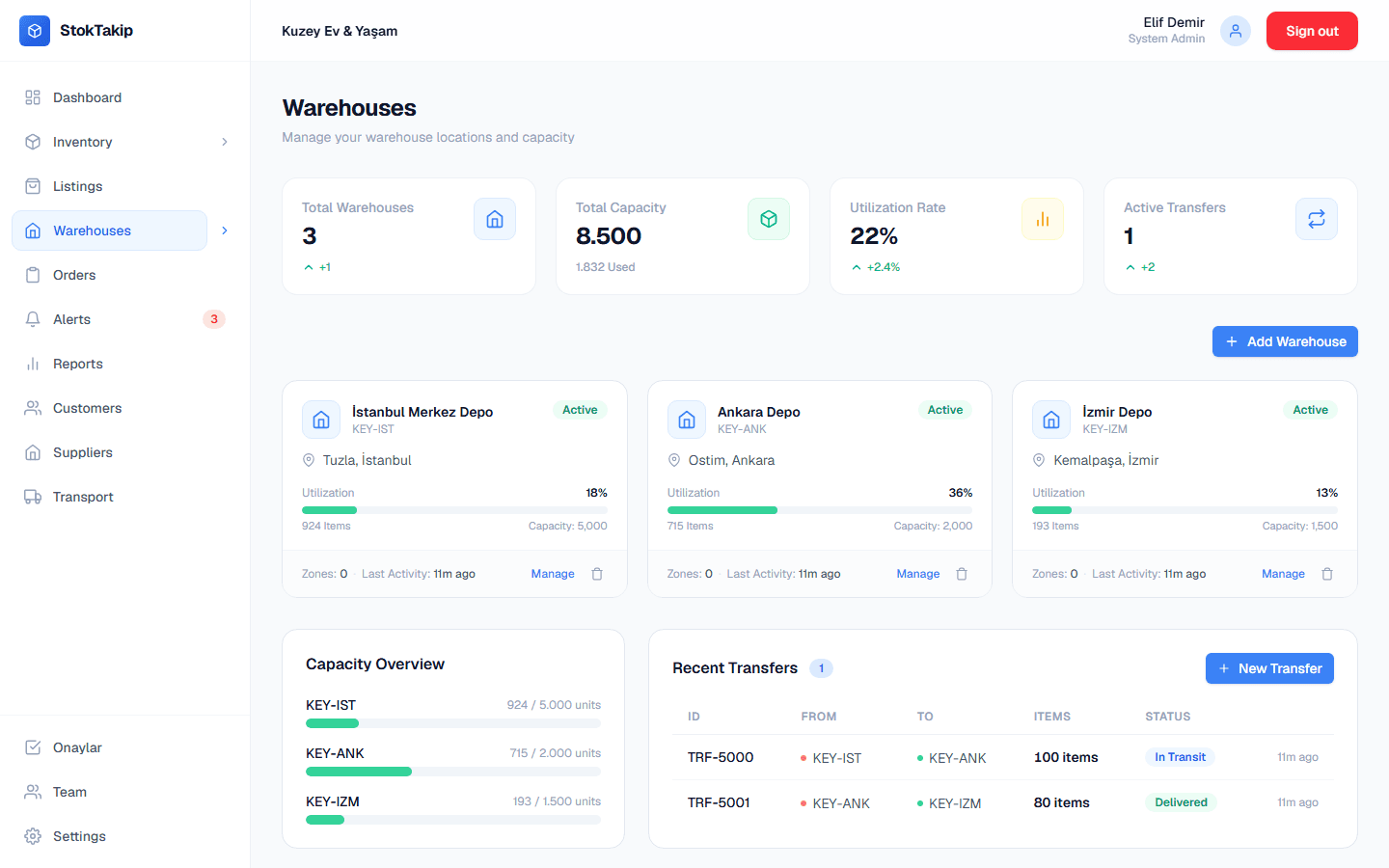
Every warehouse has a code, an address, a capacity and a status (active, maintenance, full). You can define zones such as shelves or areas inside a warehouse and watch capacity usage on the Warehouses screen.
To move goods, you create a transfer: source and destination warehouse, products and quantities. A transfer goes from pending to in transit to delivered. When it's marked delivered, the items are deducted from the source and added to the destination, so stock moves to the right place on its own.
How it works
Add your warehouses
Enter the name, code, address and capacity; define zones if you need them.
Spread stock across them
Enter the quantity per warehouse on the product detail, or update it with a stock adjustment.
Create a transfer
Choose source and destination, the products and quantities, and start the transfer.
Mark it delivered
When the goods arrive, mark the transfer delivered; stock updates in both warehouses.
Details
- Warehouse statuses: active, maintenance, full.
- Transfer stages: pending, in transit, delivered (or cancelled); each transfer gets an automatic TRF number.
- On a sales order you pick the source warehouse for each line.
- The number of warehouses depends on your plan: 1 on Free, 2 on Starter, 5 on Professional, unlimited on Enterprise.
- Total capacity, usage and active transfers on the Warehouses screen.
In practice: working with several warehouses
Pick short, meaningful warehouse codes, for example starting with a city abbreviation, so warehouses are easy to tell apart on transfer and order screens. Defining shelf and area zones makes it easier to tell colleagues where an item sits in a large warehouse.
Enter realistic capacities. The usage rate on the Warehouses screen shows a warehouse filling up ahead of time, so you can route incoming goods elsewhere or plan a transfer.
Make a habit of marking transfers in transit when they leave and delivered when they arrive. Because stock updates in both warehouses on delivery, doing this consistently cuts count differences noticeably. Cancel transfers opened by mistake to keep the list clean.
On sales orders, choose the warehouse closest to the customer or with the most stock; the per-warehouse quantities on the product detail make that a quick decision.
Frequently asked questions
Does stock change as soon as I create a transfer?
No. Stock changes when the transfer is marked delivered: items are deducted from the source and added to the destination, so goods in transit aren't counted twice.
Can I define shelves or areas inside a warehouse?
Yes. Each warehouse can have zones with a zone code and capacity.
How do I choose which warehouse an order ships from?
When you create a sales order you pick the warehouse for each line; stock is deducted from that warehouse when the order is created.
How do I mark a warehouse as under maintenance?
Set its status to maintenance or full; the Warehouses screen shows the status clearly.
How many warehouses can I have?
It depends on your plan: 1 on Free, 2 on Starter, 5 on Professional, unlimited on Enterprise. The limit applies per organization; at the limit you can't add another warehouse, but existing warehouses and stock aren't affected.
What happens to stock if I cancel a transfer?
A transfer cancelled before delivery doesn't change stock, because stock only moves between warehouses when a transfer is marked delivered.
Related features
Order tracking
Sales, purchase and return orders with a status flow, history and stock reservation.
Learn moreStock alerts
Automatic alerts when products drop below their minimum stock or run out.
Learn moreReports
Best sellers, monthly revenue and order trends, stock movements, warehouse and category breakdowns.
Learn more